Google Display Network Setup: The Real Story (GDN Guide)

Why Most Businesses Get Google Display Network Setup Wrong

Let me be straight with you about the Google Display Network setup – it’s not another version of Google Search ads. Yet most businesses treat it exactly the same way, then wonder why they’re burning through budget faster than a bushfire.
The Google Display Network reaches over 2 million websites, apps, and YouTube channels. That’s 90% of internet users globally. Sounds impressive, right? But here’s what Google won’t tell you upfront: these people aren’t actively looking to buy anything. They’re reading news, watching videos, or checking social media.
Think of display ads as digital billboards. You wouldn’t expect someone driving past a highway billboard to immediately pull over and buy your product. The same logic applies here.
At PWD, we’ve managed millions in Google Ads spend, and I’ve seen too many businesses waste money because they don’t understand this fundamental difference. If you need immediate sales and you’re on a tight budget, start with Search campaigns first. Display is for the long game – brand awareness, demand generation, and remarketing.
The Two Targeting Mistakes That Kill GDN Campaigns
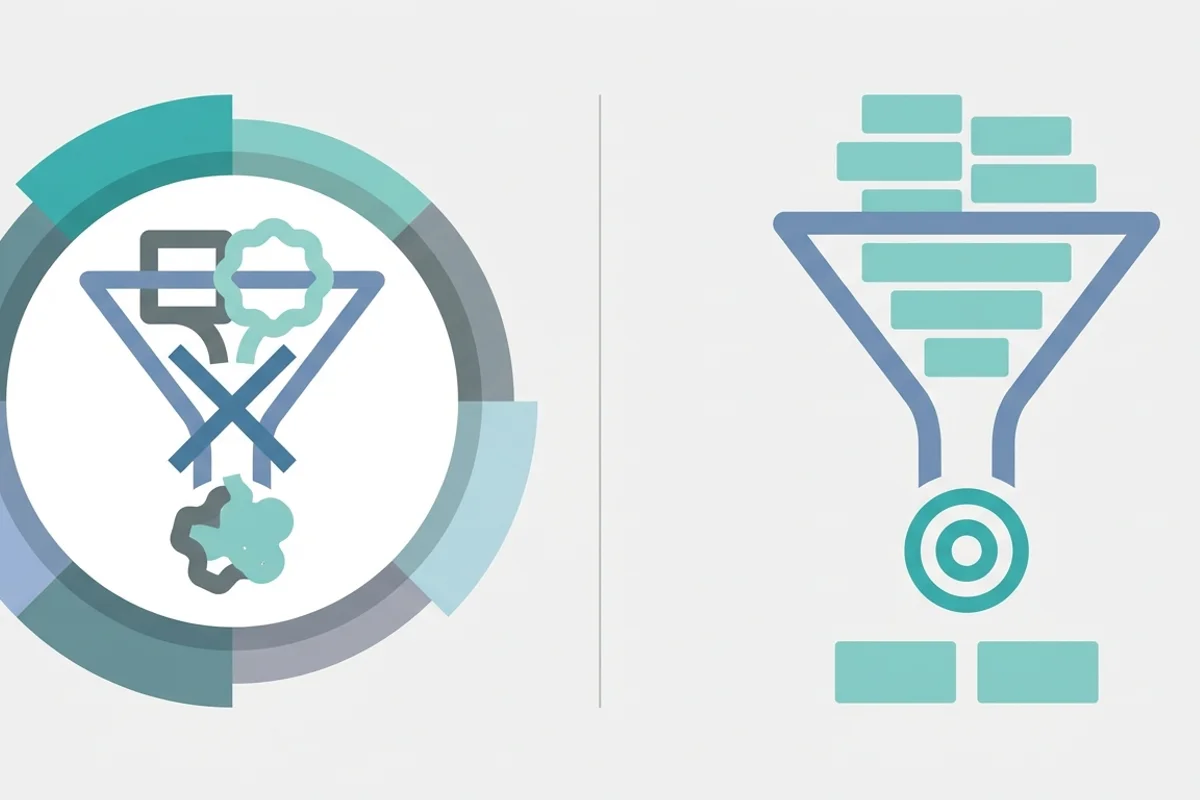
Before we get into the technical setup, you need to understand the two biggest mistakes I see with Google Display Network targeting.
Mistake #1: Mixing Search and Display
Google automatically enables the Display Network when you create a new Search campaign. This is a trap. Always opt out of this setting. The user intent is completely different between someone searching “buy running shoes” versus someone reading a news article who happens to see your running shoe ad.
Keep these campaigns separate. Always.
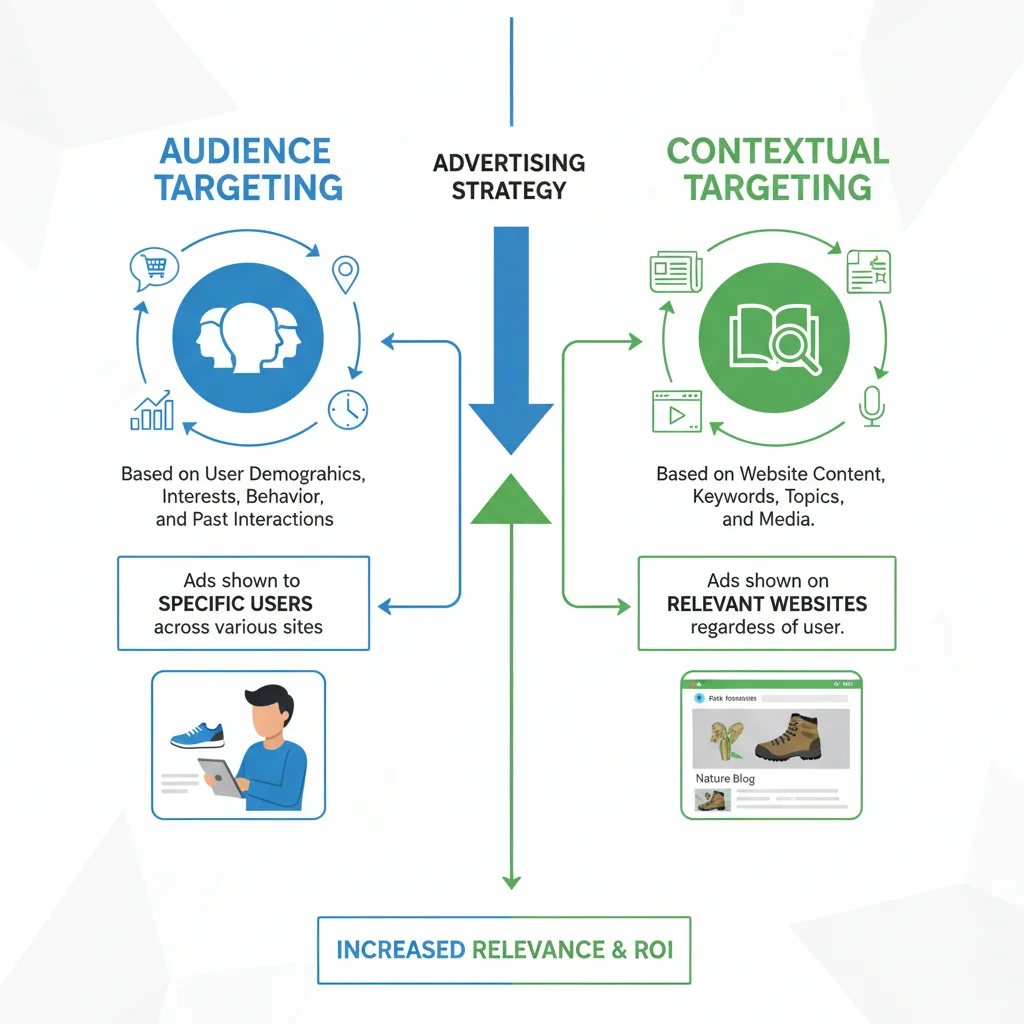
Mistake #2: Not Understanding People vs Content Targeting
GDN targeting falls into two categories:
- People (Audience Targeting): Target users based on who they are, their interests, or past behaviours
- Content (Contextual Targeting): Target specific website topics, keywords, or URL placements
Here’s the crucial bit: if you select options from both categories in the same ad group, Google treats this as an “AND” condition. The user must match your audience criteria AND be on a matching website. This makes your targeting so narrow that your ads barely show.
Pick one approach per ad group. Test them separately.
The GDN Targeting Strategy That Actually Works
The most effective targeting strategy we use is custom audiences. Specifically, competitor targeting.
You can target people who browse websites similar to your competitors by simply entering their URLs. If someone’s spending time on your competitor’s site, they’re probably interested in what you offer too.
We also create custom segments for people who’ve recently searched for your top keywords on Google. These users have already shown buying intent, even if they’re not actively searching right now.
This approach works because you’re targeting warm audiences – people who’ve already demonstrated interest in your category.
Google’s Sneaky Default Settings You Must Change
Google’s default settings are designed to spend your money, not optimise your results. Here are the settings you must change:
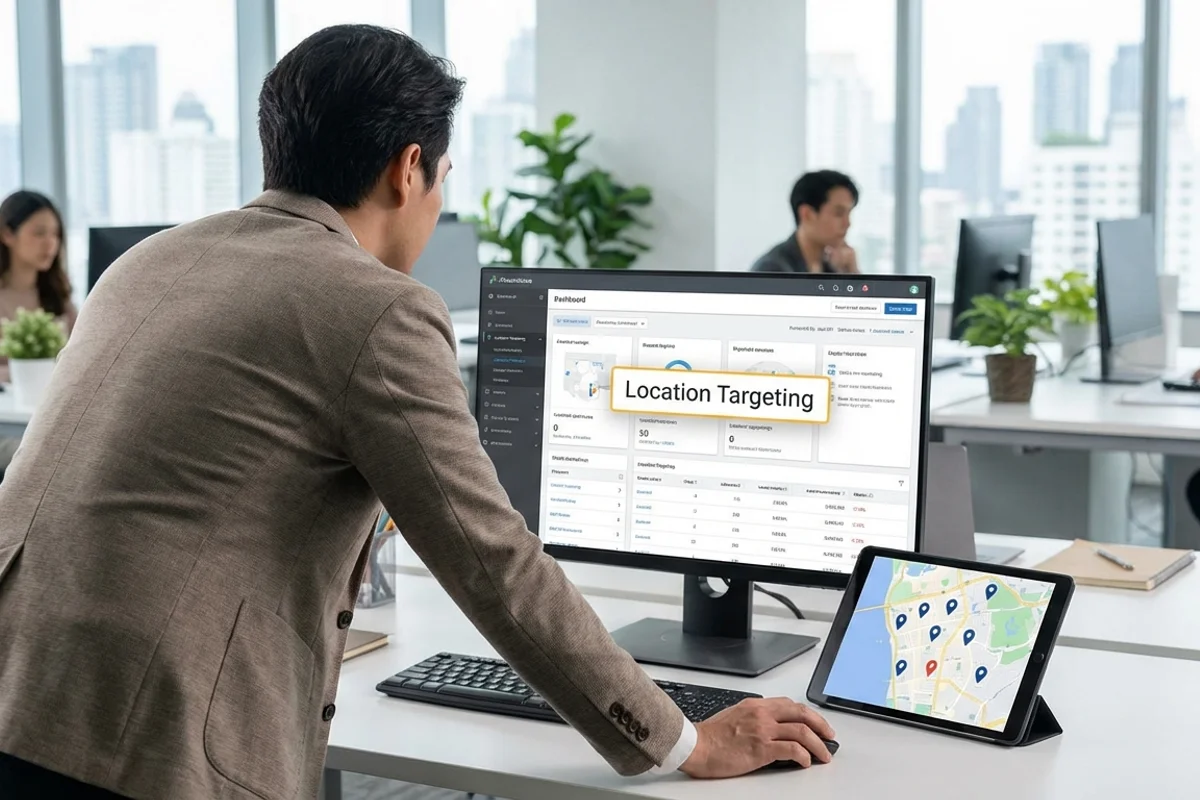
Location Targeting
Change the default from “Presence or interest” to “Presence” (people in or regularly in your target locations). Otherwise, your local Perth business ads might show to someone in Tokyo who searched for “Perth” once.
Optimised Targeting
Google turns this on by default to expand your audience beyond your selections. If you have a limited budget and want control over who sees your ads, turn this off. You can always turn it on later once you’ve gathered data.
Autogenerated Videos
When creating ads, uncheck the “autogenerated video” setting. Google’s automatically created videos from your static images look amateur and don’t convert well. If you want video ads, create proper ones or work with our digital marketing team.
Why Responsive Display Ads Beat Static Banners
Responsive Display Ads (RDAs) are now the standard, and for good reason. Instead of creating dozens of different banner sizes, you upload up to 15 images, multiple headlines, and descriptions. Google’s machine learning then mixes and matches these to fit any ad space.
The key with RDAs: don’t overlay text or logos on your images. Google will dynamically insert your logo and text, so pre-overlaid images look cluttered and unprofessional.
Upload clean, high-quality images that tell your brand story without text. Let Google handle the formatting.
Step-by-Step Google Display Network Setup
Now let’s get into the actual setup process. This blueprint will help you launch your first optimised campaign.
Campaign Creation
Navigate to your Google Ads account and click “New Campaign”. Select “Create a campaign without a goal’s guidance” – Google’s suggested goals often lead to suboptimal settings.
Select “Display” as the campaign type and name your campaign something descriptive like “Display Prospecting – Competitors”.
Location and Network Settings
Enter your target locations. For most Perth businesses, this might be “Perth, WA” with a specific radius.
Click “Location options” and change to “Presence: People in or regularly in your targeted locations.” This prevents your ads showing to tourists or people who just searched for your city.
Under “More Settings”, select “Content exclusions”. Check boxes to opt out of sensitive content categories like tragedy, conflict, and sensitive social issues. This protects your brand from appearing next to inappropriate content.
Budget and Bidding Strategy
Set your daily budget conservatively. Remember, Google can spend up to two times your daily budget on any given day, though they won’t exceed your monthly limit.
For bidding, if your account is new without conversion data, use Manual CPC starting with low bids ($0.05 to $0.10). If you have established conversion tracking and historical data, you can use Smart Bidding strategies like Maximise Conversions.
Targeting Setup
Click “Add Targeting”. For competitor targeting, go to Audience Segments > Browse > Custom Audiences > Custom Segment. Choose “People who browse types of websites” and paste 5-10 URLs of your top competitors.
Turn off “Optimised Targeting” to maintain budget control during the initial testing phase.
Creating Your Responsive Display Ads
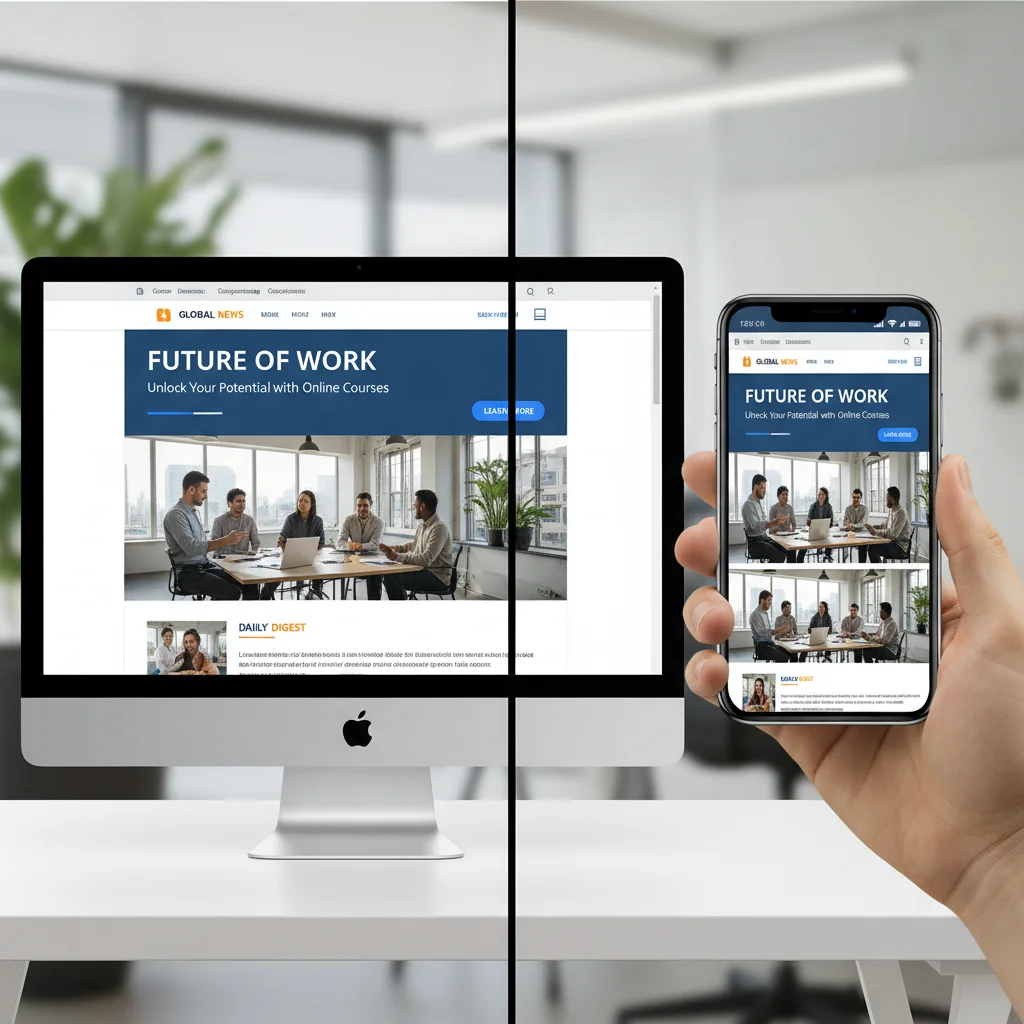
Ensure your final URL leads to a mobile-optimised landing page. About 60% of display traffic comes from mobile devices. If your website design isn’t mobile-friendly, you’ll waste money.
Upload your business logo and add up to 15 high-quality images. Google requires at least a landscape (1200×628) and square (1200×1200) image. You can use Google’s free stock image integration, but custom images perform better.
Write multiple short headlines (up to 30 characters), one long headline (up to 90 characters), and descriptions that clearly communicate your value proposition.
Under “Additional Formats”, uncheck “Use autogenerated video”. Set your Call to Action to “Automated” or choose something specific like “Learn More” or “Get Quote”.
Review the ad previews across desktop, mobile, and Google properties before publishing.
Campaign Optimisation That Makes the Difference
Your work doesn’t end at campaign launch. Here’s how to optimise for better performance:
Exclude Bad Placements
After a few days, navigate to “Insights and reports” and click “Where ads showed”. You’ll see a list of websites and mobile apps where your ads appeared. Look for irrelevant sites, spammy mobile games, or low-quality content that’s draining your budget.
Select these poor-performing placements and exclude them. This single action can dramatically improve your campaign efficiency.
Competitive Intelligence
Use Google Ads Transparency Center to search for your competitors’ brands. Filter by “Images only” to see exactly what display creatives they’re currently running. This gives you inspiration and helps you identify gaps in your own messaging.
A/B Testing
Once your baseline campaign is running, use Google’s “Experiments” feature to test single variables. Maybe test a different bidding strategy, new custom audience, or alternative ad creative approach.
The key is testing one variable at a time so you know what’s actually driving performance changes.
Budget Realities and Expectations
Let’s talk about realistic expectations. Display campaigns typically have lower conversion rates than Search campaigns, but they serve a different purpose. You’re building brand awareness and staying top-of-mind for future purchase decisions.
Plan for a longer attribution window. Someone might see your display ad today but convert through a search query next week. Make sure your attribution models account for this assisted conversion value.
Budget-wise, start small and scale based on performance data. It’s better to run a well-optimised small campaign than a large campaign with poor targeting.
Integration with Your Overall Digital Strategy
Display advertising works best as part of a broader digital marketing strategy. Combine it with remarketing campaigns to re-engage people who’ve visited your website. Use the brand awareness generated from display to improve the performance of your search campaigns.
Consider how display fits with your social media marketing efforts. Consistent messaging across all touchpoints reinforces your brand and increases conversion likelihood.
The businesses that succeed with GDN are those that understand it’s about the entire customer journey, not just immediate conversions.
Listen: Hidden Budget Traps in Google Display Ads
Hidden Budget Traps in Google Display Ads – Audio Guide
Watch: Mastering the Google Display Network
Mastering the Google Display Network – Video Guide
Frequently Asked Questions
How much should I budget for Google Display Network campaigns?
Start with 20-30% of your total Google Ads budget allocated to display campaigns. If you’re new to display advertising, begin with $20-50 per day to gather data before scaling up. Remember that Google can spend up to 2x your daily budget on any given day.
What’s the difference between Google Display Network and YouTube ads?
YouTube is technically part of the Google Display Network, but YouTube campaigns are set up separately and have different targeting options and ad formats. YouTube focuses on video content, while GDN includes websites, apps, and YouTube. For video advertising, create dedicated YouTube campaigns rather than including video in your display campaigns.
Should I use automated bidding or manual bidding for display campaigns?
If you’re new to Google Ads or don’t have conversion tracking set up, start with Manual CPC bidding with low bids ($0.05-$0.10). Once you have at least 30 conversions in the past 30 days, you can switch to automated bidding strategies like Target CPA or Maximise Conversions for better performance.
How long should I run a display campaign before making optimisation decisions?
Give your display campaign at least 2-3 weeks to gather meaningful data before making major changes. Display campaigns need time for Google’s machine learning to optimise ad delivery. However, you should exclude obviously bad placements (like irrelevant mobile games) within the first few days to prevent budget waste.